
Yes, you can connect AirPods to a TV, and you don’t need an Apple TV. In pairing mode AirPods act like any Bluetooth headphones, so they work with almost any TV that has Bluetooth audio. It’s a nice way to watch late at night without waking the house. Here’s how to connect AirPods to TV models from every big brand, step by step.
Our verdict
Quick answer: put the AirPods in pairing mode (status light flashing white), then open your TV’s Bluetooth or sound output settings and select them. No Bluetooth on the TV? Use a Bluetooth transmitter, or on Roku, private listening in the Roku phone app.

Step 1: Pairing mode
| Model | How to start pairing |
|---|---|
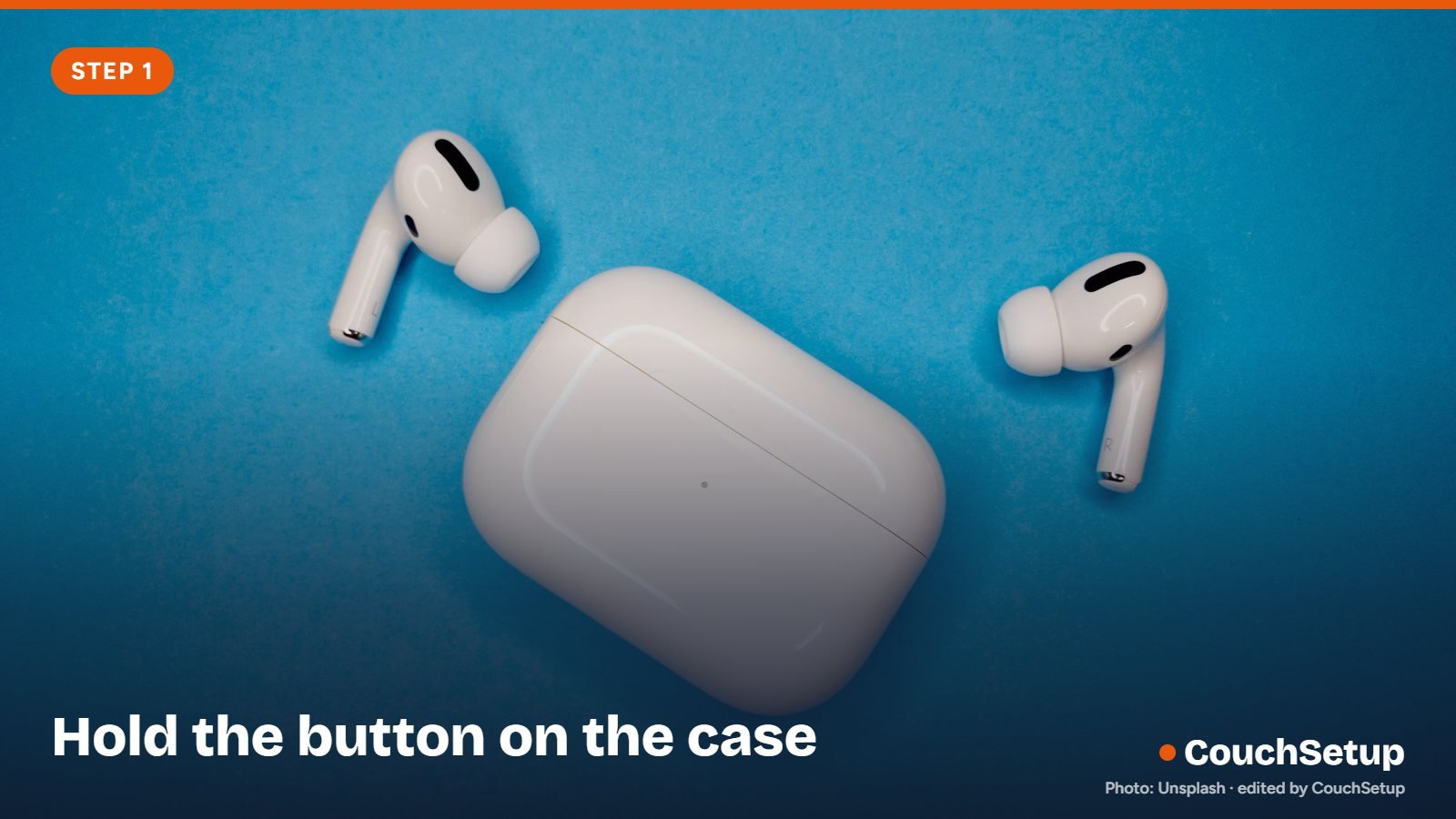
| AirPods 4 and newer, AirPods Pro 3 | Case open with AirPods inside, double-tap the front of the case until the light flashes white |
| AirPods Pro 2 and older AirPods | Case open, hold the setup button on the back for about 5 seconds until the light flashes white |
| AirPods Max | Hold the listening mode button for about 5 seconds until the light flashes white |
Step 2: Pair with your TV
| TV | Where to pair |
|---|---|
| Samsung | Settings > Sound > Sound Output > Bluetooth Speaker List |
| LG | Settings > Sound > Sound Out > Bluetooth Device |
| Sony / Google TV | Settings > Remotes & Accessories > Pair accessory |
| Fire TV | Settings > Controllers & Bluetooth Devices > Other Bluetooth Devices |
| Roku | Settings > Remotes & devices > Pair Bluetooth device (some models), or private listening in the Roku app |
| Apple TV | Hold the TV button to open Control Center, or Settings > Remotes and Devices > Bluetooth |
To go back to the TV speakers on Samsung, set Sound Output back to TV Speaker. On Apple TV, AirPods signed in to the same Apple Account usually appear automatically.
What the reviews don’t tell you
How much delay you’ll notice
Bluetooth always adds some delay, and the broadcast standard ITU-R BT.1359 found viewers can detect sound lagging the picture once it passes about 125 ms (and sound leading at about 45 ms). Bluetooth headphones on a non-Apple TV often land near that line, which is why lips can look slightly off on one TV and fine on another.
| Setup | Lip-sync | Fix |
|---|---|---|
| Apple TV + AirPods | Compensated automatically | Nothing to do |
| Smart TV with an AV sync setting | Usually fixable | Delay the picture or shift audio in sound settings |
| TV without AV sync | May look off | Low-latency transmitter or dedicated TV headphones |
| Roku private listening (phone app) | Synced by the app | Keep the phone on fast Wi-Fi |
What you lose on a non-Apple TV
- Spatial audio and head tracking (Apple devices only).
- Automatic switching between your devices.
- Touch volume on the stems; use the TV remote instead.
- Surround: you get stereo over Bluetooth.
AirPods vs dedicated TV headphones
| Feature | AirPods on a TV | Dedicated TV headphones |
|---|---|---|
| Connection | Bluetooth | Usually a base station on the TV’s audio output |
| Delay | Depends on the TV’s AV sync | Built for TV, very low |
| Battery | Hours per charge, case top-ups | Often charge on the base |
| Comfort for long sessions | In-ear | Over-ear or under-chin |
| Volume boost for hearing loss | No | Many models have it |
For occasional late-night viewing, AirPods are perfect. For someone who watches with headphones every evening or needs dialogue boosted, a dedicated set is the better tool.
Two people, one TV
Apple TV can share audio to two sets of AirPods at once. Most other TVs play to only one Bluetooth device, so two listeners need a dual-link Bluetooth transmitter, or one person on Roku private listening through the phone app.
No Bluetooth on your TV?
- Plug in a Bluetooth transmitter on the headphone jack or optical output. Pick one with low-latency support and its own volume control.
- Use your streaming stick: most Fire TV sticks and Google TV devices support Bluetooth headphones even if the TV doesn’t.
- Use Roku private listening: connect the AirPods to your phone, open the Roku app and tap the headphone icon.
If you watch with headphones every night, dedicated TV headphones are more comfortable and have almost no delay. See best wireless headphones for TV.
Fixing common problems

| Problem | Fix |
|---|---|
| Sound out of sync | Adjust AV sync, Bluetooth audio sync or audio delay in the TV’s sound settings |
| AirPods jump back to the iPhone | On iPhone: Settings > Bluetooth > (i) next to AirPods > Connect to This iPhone: When Last Connected, or turn off the phone’s Bluetooth |
| Volume too low | Use the TV remote; check a transmitter’s own volume |
| They don’t show up | Close the lid for 15 seconds, reopen and start pairing again; disconnect other Bluetooth audio from the TV |
How we picked
We gathered Apple’s and Roku’s official instructions, the TV makers’ menu paths and the ITU lip-sync research, put them side by side, and worked out what most guides leave out, like how much delay you’ll notice and when it can be fixed. Every source is listed at the end.
FAQ
Can you connect AirPods to any TV?
Any TV with Bluetooth audio. Otherwise use a transmitter or a streaming stick with Bluetooth.
How do I connect AirPods to a Samsung TV?
Settings > Sound > Sound Output > Bluetooth Speaker List, with the AirPods in pairing mode.
How do I connect AirPods to a Roku TV?
Pair in Settings > Remotes & devices if supported, or use private listening in the Roku app.
Can two people use AirPods on one TV?
Apple TV can share audio to two sets; most other TVs play to one Bluetooth device.
Why is there a delay?
Bluetooth adds latency. Use the TV’s AV sync setting or a low-latency transmitter.
Related guides
- Best wireless headphones for TV
- Can’t hear dialogue on your TV?
- How to connect your phone to a TV
- Fire TV Stick vs Roku
Sources: Apple Support: Pair AirPods with a non-Apple device · Roku: How to use private listening · Wikipedia: Audio-to-video synchronization (ITU-R BT.1359)