This home theater setup guide puts every decision in order. A great home theater isn’t about spending the most money. It’s about making good decisions in the right order: measure the room, pick the right screen size, get the sound right, then sort out seating, light and cables. Do it in that order and a $1,000 home theater setup can beat a $5,000 one that was bought in the wrong order.
This guide walks you through every step of a home theater setup for a normal living room, bedroom or apartment, with free calculators along the way and links to our detailed buying guides.
Home theater setup quick plan: the 7 decisions, in order
- Measure the room: seating distance, wall width, daylight
- Choose the screen: TV or projector, and what size
- Choose the sound: soundbar or speakers
- Pick your sources: streaming device, console, cables
- Sort out seating: where the couch goes
- Control light and echo
- Set it up and fine-tune it
Step 1: Measure your room first
Three measurements decide almost everything:
- Seating distance: from your eyes (sitting on the couch) to the wall or stand where the screen will go.
- Wall width: the space available for the screen and front speakers.
- Light: how much daylight hits the screen wall and at what times you watch.
Write them down. You’ll use them for every other setup decision, and they stop you from buying a TV that doesn’t fit the stand or a projector that can’t be placed far enough back. For movie nights outside, see our best outdoor projector guide.
Step 2: TV or projector, and what size
TV or projector?
| Feature | TV | Projector |
|---|---|---|
| Best for | Bright rooms, daytime viewing, gaming, everything-in-one | Dark rooms, huge picture on a budget, movie nights |
| Picture size | Up to about 100 inches (expensive above 85) | 100 to 150 inches is easy |
| Daylight | Handles it well, especially bright LED/Mini-LED TVs | Washes out unless it’s very bright or you use a special screen |
| Setup | Plug in and go | Needs placement planning, a screen or smooth wall, and usually separate sound |
Still unsure? Our projector vs TV comparison goes deeper.
Pick the size with the calculator, not a guess
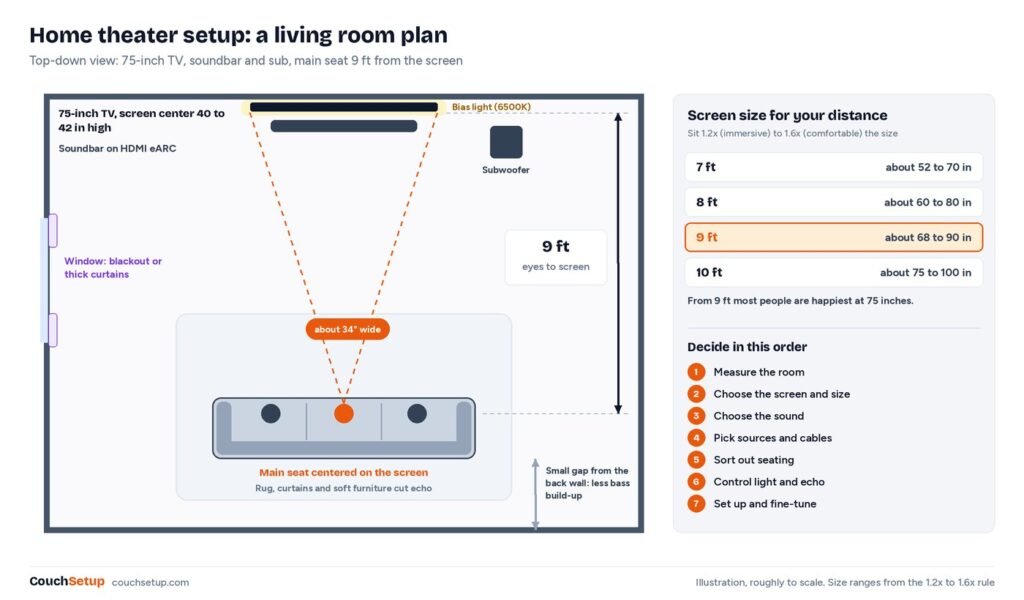
For a TV, the right size depends on your seating distance. A simple rule for 16:9 screens: sit between 1.2× (immersive) and 1.6× (comfortable) the screen size away. From 9 feet, that means roughly 65 to 90 inches, and most people are happiest at 75 inches.
Use our TV size calculator to get exact sizes for your distance. For a projector, use the projector throw calculator to check that it can actually make the size you want from where you can put it.
What to look for in the screen
- Bright room: a bright LED or Mini-LED TV with good anti-glare handling. See best TVs for small rooms.
- Dark room, movies first: OLED TVs have perfect blacks; a projector gives you size.
- Gaming: HDMI 2.1 ports with 4K at 120Hz, VRR and low input lag for PS5, Xbox Series X and PC.
- Mounting height: put the center of the screen close to seated eye level, usually around 40–42 inches from the floor. Avoid mounting high over a fireplace.
Step 3: Get the sound right
TV speakers are the weakest part of almost every TV. Sound is where a modest budget makes the biggest difference in any setup.
Soundbar or separate speakers?
| Feature | Soundbar | AV receiver + speakers |
|---|---|---|
| Space needed | Just under the TV | Room for 5 to 11 speakers and a sub |
| Setup | One HDMI cable, 15 minutes | Speaker wire, placement, calibration |
| Surround effect | Good (great with add-on rear speakers) | Best, with real speakers around you |
| Upgrade path | Limited to that brand | Swap any part later |
| Best for | Small rooms, apartments, simplicity | Dedicated movie rooms, enthusiasts |
For most living rooms a good soundbar is the right call. Start with our best soundbars for small rooms or best soundbars under $300. Going with separate speakers? The speaker placement calculator shows exactly where each one goes.
Connect it the right way: HDMI eARC
Connect the soundbar or receiver to the TV’s HDMI port labeled eARC (or ARC). eARC can carry lossless Dolby TrueHD and Dolby Atmos from your TV’s apps and devices; plain ARC is limited to compressed formats such as Dolby Digital Plus. Turn on HDMI-CEC in the TV settings so one remote controls the volume.
Apartment? Think about the neighbors
Night mode and dialogue enhancement keep voices clear at low volume, and a pair of wireless TV headphones solves late-night movies completely. See our renter-friendly TV setup guide.
Step 4: Sources, streaming and cables
- Streaming: built-in TV apps are fine for many people. An external streaming stick is faster, gets updates for longer and is easy to replace. Compare Fire TV Stick vs Roku.
- Older TV? A streaming stick turns any TV with HDMI into a smart TV. Here’s how to make an old TV smart.
- Consoles and PCs: plug them straight into the TV’s HDMI 2.1 ports for 4K at 120Hz, and let the TV send sound to the soundbar over eARC.
- HDMI cables: for 4K at 120Hz use cables certified as Ultra High Speed HDMI. For everything else, Premium High Speed cables are enough. Expensive “premium” branding makes no difference.
Setup wiring: HDMI, eARC and cables
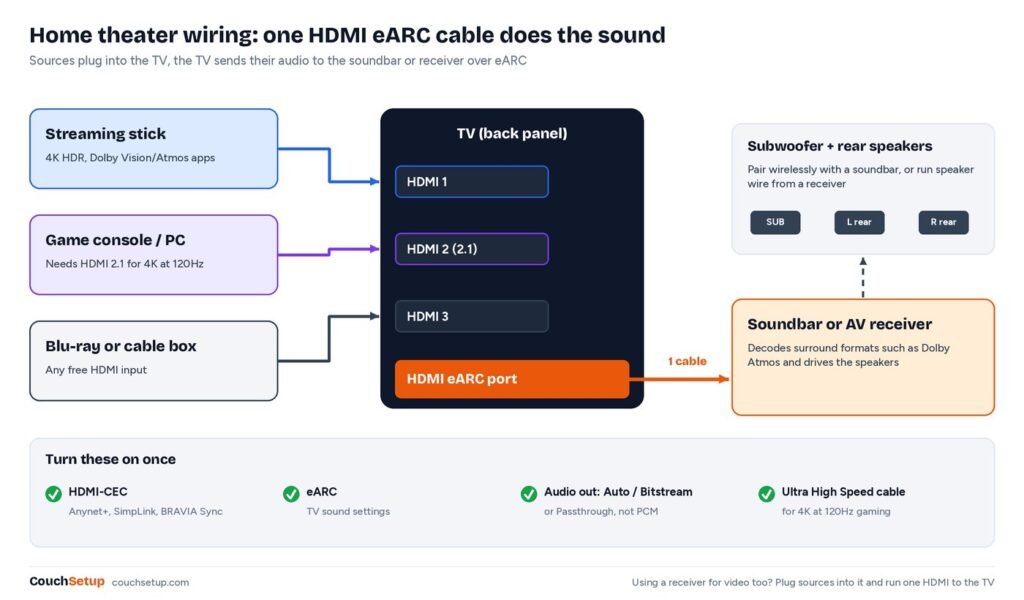
Most wiring trouble in a setup comes from one wrong port or one setting left off. The simplest layout for a TV and soundbar: every source plugs into the TV, and a single HDMI cable runs from the TV’s eARC port to the soundbar’s HDMI input. The TV then sends the audio from its own apps and from every connected device to the bar.
The four settings to check once
- HDMI-CEC on. Brands call it Anynet+ (Samsung), SimpLink (LG), BRAVIA Sync (Sony) and similar. It lets the TV remote control the soundbar volume and power.
- eARC on. Many TVs have a separate eARC switch in the sound menu. If it’s off, the port falls back to plain ARC.
- Digital audio output set to Auto, Bitstream or Passthrough, not PCM, so Dolby signals reach the soundbar or receiver untouched.
- Enhanced HDMI signal on the console’s input. Samsung calls it Input Signal Plus, LG calls it HDMI Ultra HD Deep Colour, Sony calls it Enhanced format. Without it, some TVs cap that port below 4K at 120Hz.
Which HDMI cable do you need?
For a PS5, Xbox Series X or gaming PC at 4K and 120Hz, use a certified Ultra High Speed HDMI cable. The HDMI Licensing Administrator rates these cables for up to 48Gbps and says certified ones carry a label with a QR code you can scan to check the certification. For a streaming stick or cable box, the cable that came in the box is fine.
Using an AV receiver instead
In a receiver-based setup, plug the sources into the receiver and run one HDMI cable from its output to the TV’s eARC port. That single cable sends video to the TV and brings audio from the TV’s own apps back to the receiver. If your receiver can’t pass 4K at 120Hz, plug the console into the TV instead. The HDMI 2.1 specification page lists 4K at 120Hz among the supported formats, so check the port labels on both devices.
No ARC port at all? Optical still works for stereo and basic 5.1 Dolby Digital, but it can’t carry lossless audio or Dolby Atmos. Our HDMI ARC vs eARC guide covers the differences and the fixes for common audio dropouts.
Step 5: Seating and layout
- Center the main seat on the screen. Off-center seats get weaker picture (especially with some LCD TVs) and unbalanced sound.
- Keep the couch a little away from the back wall if you can; bass builds up against walls and the rear surrounds need space.
- Deep seats and reclining sections matter more than you think over a two-hour movie. See our most comfortable couches for movie nights.
- Check sight lines from every seat and keep the room walkable: a coffee table that blocks the path to the TV gets moved within a week.
Step 6: Control light and echo
- Daylight: glare is the number one picture killer in a setup. Blackout or thick curtains help any TV and are essential for projectors.
- Bias lighting: a soft light strip behind the TV reduces eye strain in a dark room and makes blacks look deeper. Pick a 6500K (D65) white. See the best TV backlights.
- Echo: bare walls and hard floors make dialogue harder to follow. A thick rug, curtains, a full bookshelf and soft furniture fix most of it before you ever need acoustic panels.
Step 7: Set it up and fine-tune it
- Hide the cables before you finish: raceways, cable sleeves or an in-wall kit. Here’s how to hide TV wires, with and without drilling.
- Picture: switch the TV to Filmmaker Mode, Cinema or Movie mode, and turn off motion smoothing for films. Use Game mode for consoles.
- Sound: run the soundbar’s or receiver’s room calibration with the microphone at your seat. Set the TV speaker output to the soundbar/receiver.
- Subwoofer: try the subwoofer crawl (put the sub on your seat, crawl around the room, place it where the bass sounds smoothest).
- Watch a few favorites you know well and adjust dialogue level or bass to taste.
Setup day: a step-by-step setup checklist
Once the gear arrives, the order of the physical work matters as much as the buying order. Do the heavy, messy jobs first, then the connections, then the settings. That way you never unplug a finished setup to move a couch or fish a cable through a wall.
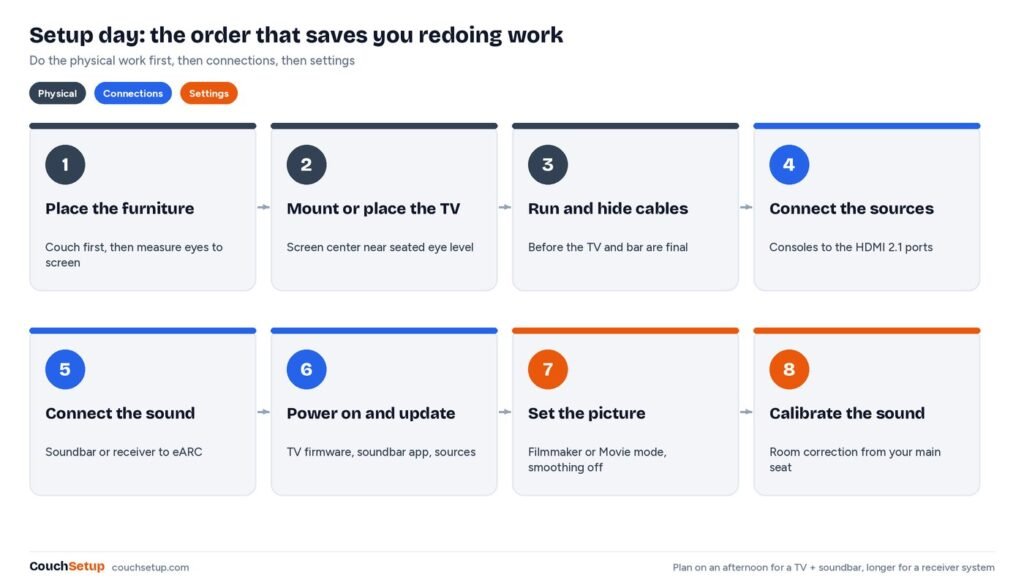
- Place the furniture first. Put the couch where it will live, sit down and measure from your eyes to the screen wall. Every later measurement starts here.
- Mount or place the TV. Mark the screen center at roughly seated eye level and check the studs or the stand’s weight rating. See how high to mount a TV and the types of TV wall mounts.
- Run and hide the cables while the wall is still easy to reach. Leave a spare HDMI cable in the raceway or wall plate for the next device.
- Connect the sources to the TV, with consoles on the HDMI 2.1 ports. Label both ends of each cable with tape.
- Connect the sound from the TV’s eARC port to the soundbar or receiver, then pair any wireless subwoofer and rear speakers.
- Power on and update everything. TV firmware, soundbar app and console updates often fix eARC and lip-sync bugs.
- Set the picture for each input, then calibrate the sound from the main seat, as described below.
- Tidy up and test with a movie, a TV show with lots of dialogue and a game. Check that one remote turns everything on and off.
A TV and soundbar usually take an afternoon. A receiver system with five or more speakers, wall mounting and in-wall cables can take a full weekend, so don’t start it the night before a movie night.
Calibration basics for your setup
You don’t need a professional calibrator to get a setup most of the way there. Ten minutes in the picture and sound menus fixes the biggest problems on almost every TV and soundbar.
Picture
- Start from Filmmaker Mode, Cinema or Movie mode. The UHD Alliance’s Filmmaker Mode FAQ explains that the mode turns off post-processing such as motion smoothing, sharpening and noise reduction.
- Turn off energy-saving and eco picture options if the image looks dim. They lower brightness to save power.
- Make a bright-room preset too. Movie modes can look dark in daylight. Many TVs let you keep a brighter mode for daytime sports and a darker one for evenings.
- Check each input separately. Most TVs remember settings per HDMI input, so the console needs Game mode and the streaming stick needs Movie mode.
Our best TV picture settings guide walks through each menu item by brand.
Sound
- Run the room correction (Audyssey, YPAO, Dirac, Trueplay or the soundbar’s own version) with the microphone at ear height in the main seat.
- Receiver owners: set small speakers to “Small” with an 80 Hz crossover as a starting point, so the subwoofer handles the deep bass.
- Dialogue first: raise the center channel or dialogue level a step if voices get lost. Our guide to fixing quiet TV dialogue has more fixes.
- Subwoofer level: after calibration, nudge it to taste. Bass that booms on one seat and vanishes on another is a placement problem, not a level problem.
Placing separate speakers? Dolby’s free speaker setup guides cover layouts from 2.1 up to 11.1.8 with mounted overhead speakers, and our speaker placement calculator turns those angles into distances for your room.
Room-by-room setup plans
The same seven setup decisions apply everywhere, but the answers change with the room. These plans use typical seating distances and the 1.2× to 1.6× screen-size rule from Step 2.
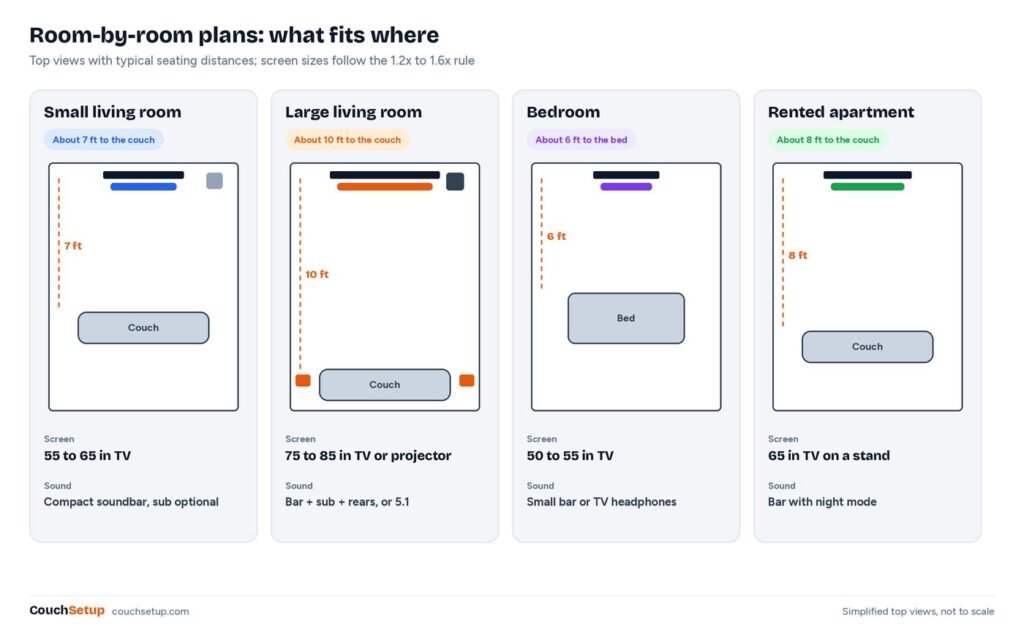
Small living room
At about 7 feet, a 55- to 65-inch TV fills your view without overwhelming the wall. A compact soundbar is usually enough, because small rooms fill with sound easily. Wall mounting frees up floor space. See our small living room home theater layouts and compact soundbar picks.
Large or open-plan living room
From 10 feet or more, 75 to 85 inches is the sweet spot, or a projector if you can control daylight. Open-plan rooms swallow sound, so a soundbar with a subwoofer and rear speakers, or a receiver with 5.1 speakers, makes a bigger difference here. Compare soundbar vs surround sound and 65 vs 75 inches.
Bedroom
Beds put you close to the screen, often 6 feet or less, so 50 to 55 inches is plenty. Mount the screen a little higher than in a living room because you watch reclined. A small soundbar or wireless headphones keep the peace. Our bedroom TV setup guide covers heights and sizes.
Rented apartment
No drilling? A TV stand or floor stand with a mount arm, adhesive cable raceways and a soundbar with night mode get you most of the way. Keep the subwoofer off shared walls or skip it. Read our renter-friendly setup guide and TV stands for 65-inch TVs.
Basement or dedicated movie room
Total light control is where a projector shines. Pair it with the right projector screen, a 5.1 or Atmos speaker layout and proper home theater seating. A riser for the back row keeps heads out of the picture.
Gaming corner
For a gaming-first setup, latency matters more than size. Use a TV with HDMI 2.1, Game mode and VRR, and sit a little closer than you would for movies. See our couch gaming setup and best TVs for PS5 and Xbox.
Budget plans: $500, $1,000 and $3,000
These setup budgets are starting points, not rules. The idea is where the money goes, because the split matters more than the total.
| Budget | Screen | Sound | Extras | Good for |
|---|---|---|---|---|
| About $500 | 50–55-inch 4K TV | Budget soundbar | Streaming stick, basic wall mount or stand | Bedrooms, small living rooms |
| About $1,000 | 65-inch 4K TV | Soundbar with subwoofer | Mount, cable hiding, bias lighting | Most living rooms |
| About $3,000 | 75–85-inch Mini-LED or OLED, or a projector + screen | Atmos soundbar with rears, or 5.1 receiver system | Blackout curtains, better seating, rug | Movie-night rooms |
See complete builds in our home theater setup under $1,000 and small living room home theater guides.
Upgrading over time? Do it in this order
- Sound first. A soundbar is the upgrade most people notice the most on an existing TV.
- Light control. Curtains and bias lighting cost little and make every screen look better.
- A subwoofer, if your soundbar supports one. Deep bass is what makes movies feel big.
- A bigger or better screen, sized with the calculator for your seat.
- Rear speakers or a receiver system for real surround, once the basics are right.
Upgrading a setup in stages also keeps each purchase simple to return if it doesn’t suit your room. If you’re torn on the screen type, OLED vs Mini-LED comes down to how bright the room is.
Common setup mistakes to avoid
Each of these is easy to avoid if you catch it while you’re still planning. Fixing them after the TV is on the wall takes far longer.
- Buying the TV before measuring the seating distance and the wall.
- Mounting the TV too high.
- Spending everything on the screen and nothing on sound.
- Plugging the soundbar into a non-ARC HDMI port (or using optical when eARC is available).
- Plugging a console into an HDMI port that doesn’t support 4K at 120Hz, or leaving the enhanced HDMI setting off.
- Setting the TV’s audio output to PCM, which turns surround tracks into stereo before they reach the soundbar.
- Leaving motion smoothing on for movies.
- Ignoring daylight, then blaming the TV for a washed-out picture.
- Pushing a subwoofer into a corner and turning it up until it booms, instead of finding a better spot.
- Skipping firmware updates, which often fix eARC dropouts and lip-sync delays.
- Hiding the soundbar inside a closed TV cabinet or behind a lip, which muffles dialogue and blocks up-firing speakers.
Keep going: more setup and buying guides
- Setups: small living room home theater · under $1,000 · renter-friendly TV setup · hide TV wires
- TVs: best TVs for small rooms · 65 vs 75-inch TV
- Sound: best soundbars for small rooms · best soundbars under $300
- Projectors: best short-throw projectors · projector vs TV
- Streaming: Fire TV Stick vs Roku · make an old TV smart
- Room: most comfortable couches · TV backlights
- Tools: TV size · projector throw · speaker placement
FAQ
How much does a basic home theater cost?
A good basic setup (a 55- to 65-inch 4K TV plus a soundbar) usually costs somewhere between $500 and $1,000. The biggest upgrades after that are a larger screen, a subwoofer and rear speakers.
Can I build a home theater in a small room?
Yes. Small rooms are actually easier to fill with sound. Use a TV sized to your seating distance or a short-throw projector, and a compact soundbar. See our small living room setups.
Is a soundbar good enough for a home theater?
For most living rooms, yes, especially a soundbar with a subwoofer. Separate speakers with an AV receiver are better for large rooms and for true surround, but take more space and setup.
What should I buy first?
In any setup, measure first, then buy the screen, then the sound. If you already have a decent TV, a soundbar is the upgrade you will notice most.
Do I need 4K?
Almost every new TV is 4K anyway. What matters more for picture quality is brightness, contrast and HDR performance, and choosing the right size for your distance.
How long does a setup take?
A TV and soundbar setup usually takes an afternoon, including mounting and updates. A receiver system with five or more speakers and hidden cables can take a weekend.
What HDMI cable do I need?
For 4K at 120Hz gaming, a certified Ultra High Speed HDMI cable. For streaming sticks, cable boxes and the soundbar connection, a Premium High Speed cable or the one in the box is fine.
Do I need an AV receiver for Dolby Atmos?
No. Many soundbars decode Dolby Atmos and use up-firing drivers or add-on rear speakers. A receiver with real overhead or height speakers gives a stronger effect, but needs more space and wiring.
Where should the subwoofer go?
Start near the front of the room, then try the subwoofer crawl: put the sub at your seat, play a bass-heavy scene and move around the room until the bass sounds even. Put the sub where it sounded best.
How do I control everything with one remote?
Turn on HDMI-CEC on the TV and every device. The TV remote then controls soundbar volume, and turning on a streaming stick or console can wake the TV and sound system together.