

Most TVs leave the factory in a mode built to grab attention on a bright store floor: cranked-up color, heavy sharpening and motion smoothing that makes a film look like a daytime soap. Fixing it takes about five minutes and no special gear.
Our verdict
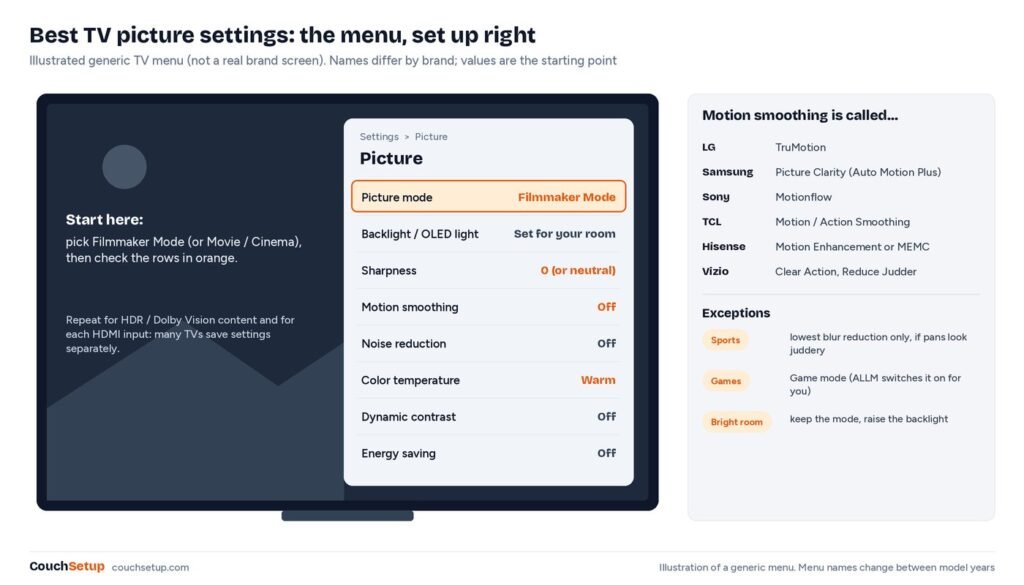
Short answer: the best TV picture settings for most people are Filmmaker Mode (or Movie/Cinema), motion smoothing off, sharpness at zero or neutral, Warm color temperature, and the backlight set for your room. Allow a little blur reduction for sports, and use Game mode for consoles.
The 60-second version
| Setting | Movies and shows | Live sports |
|---|---|---|
| Picture mode | Filmmaker, Movie or Cinema | Filmmaker/Movie, or Standard in a very bright room |
| Motion smoothing | Off | Off or lowest |
| Sharpness | 0 or neutral | 0 or neutral |
| Noise reduction | Off for 4K, low for poor sources | Low for cable |
| Color temperature | Warm (Warm 2 on many TVs) | Warm |
| Dynamic contrast, black enhancer | Off or low | Low |
| Backlight / OLED light | Set for your room | Higher for day games |
| Eco / energy saving | Off | Off |
In a bright room, raising the backlight (the light output control, not the “Brightness” black-level control) is the single most useful change you can make.
What most settings guides don’t explain
Why motion smoothing makes films look fake: the math
Films are shot at 24 frames per second. A 120Hz TV refreshes 120 times a second, which is exactly 5 refreshes per film frame. With motion smoothing on, the TV keeps 1 real frame and invents the other 4. In other words, up to 80% of what you see is made up by the TV, which is where the slick “soap opera” look comes from.
On a 60Hz TV, 60 ÷ 24 is 2.5, which doesn’t divide evenly. The TV has to hold frames for an uneven 3, 2, 3, 2 pattern of refreshes, and that’s the slight stutter you notice on slow pans. That’s why Sony’s True Cinema and similar “film” options exist: they fix the cadence without inventing frames.
“Brightness” usually isn’t brightness
On most TVs the control called Brightness sets the black level. Raising it to fight daylight turns blacks gray. The control you want is Backlight, OLED Light or Peak Brightness.
Settings are saved per input and per format
Many TVs keep separate settings for each HDMI input, the built-in apps, and HDR versus SDR. That’s why the TV can look perfect on regular shows and wrong on a Dolby Vision movie. Repeat the steps while each source and HDR content is actually playing.
Step 1: Use Filmmaker Mode
Filmmaker Mode is a preset backed by the UHD Alliance, studios and directors. It turns off motion smoothing, extra sharpening and noise reduction, keeps the original aspect ratio and frame rate, and aims for the white point content was mastered to. FlatpanelsHD lists LG, Samsung, Sony, Hisense, TCL, Panasonic, Philips and others as supporting it, and since 2024 it works with Dolby Vision on supporting TVs.
It may look dim or warm at first because your eyes are used to the bluish Standard look. Give it a couple of evenings. No Filmmaker Mode? Use Movie, Cinema or Calibrated and follow the steps below by hand.
Step 2: Turn off motion smoothing

| Brand | Motion smoothing is called | Where |
|---|---|---|
| LG | TruMotion | Picture, Clarity or Advanced |
| Samsung | Picture Clarity Settings (Auto Motion Plus on older sets) | Picture, Expert Settings |
| Sony | Motionflow | Picture, Motion |
| TCL (Google TV) | Motion Smoothing / Action Smoothing | Picture, Advanced |
| Hisense | Motion Enhancement or MEMC | Picture, Motion or Expert |
| Vizio | Clear Action, Reduce Judder / Motion Blur | Picture, Advanced Picture |
- LG: TruMotion Off. For sports, the User option lets you keep De-Judder at 0 and try a low De-Blur.
- Samsung: Picture Clarity Off. For sports, Custom with Blur Reduction low to medium and Judder Reduction 0.
- Sony: Motionflow Off, or True Cinema, which keeps film looking like film without inventing frames.
- TCL, Hisense and others: switch to Filmmaker or Movie first, which usually disables it, then check any MEMC setting reads Off.
Step 3: Fix sharpness and the “enhancers”
- Sharpness: 0 on LG and Samsung, or the neutral default on Sony and others. Up one or two steps at most if text looks soft.
- Noise reduction: off for 4K streaming and Blu-ray, low for old DVDs or poor cable.
- Dynamic contrast and black enhancers: off or low; they crush dark detail.
- Color temperature: Warm, the warmest preset.
- Eco and light sensors: off if the picture keeps dimming. Try the sensor both ways if your room’s light changes a lot.
HDR and Dolby Vision
- Start an HDR or Dolby Vision show and check the badge appears.
- Choose Filmmaker or Cinema again while it plays.
- Leave the backlight or OLED light at maximum; HDR needs it for highlights.
- If dark scenes are too dim in daylight, try dynamic tone mapping or a bright-room variant.
- Repeat on each HDMI input that sends HDR.
Using an Apple TV 4K? Turn on Match Dynamic Range and Match Frame Rate under Settings, Video and Audio, so films arrive at their original frame rate.
Day vs night, and sports
| Situation | Mode | Motion | Light output |
|---|---|---|---|
| Movie night, dark room | Filmmaker / Cinema | Off | Moderate, plus a bias light |
| Movies in daylight | Filmmaker or Movie | Off | High |
| Live sports | Movie or Standard | Low, or blur only | High |
| Console gaming | Game mode | Off | To taste |
| Old DVDs | Movie | Off | Moderate, noise reduction low |
US sports broadcast at 60 frames per second, so the soap opera effect isn’t the problem; blur on fast pans is. Avoid Vivid, which turns grass neon green. If your TV can store two custom modes, set one for day and one for night. A bias light helps a lot for dark-room viewing, and if your TV struggles in daylight it may simply be too dim for the room; see best TVs for bright rooms.
Game mode is the exception to “Filmmaker for everything”: it cuts processing to lower input lag, and most TVs switch to it automatically when a console is detected. See best TVs for PS5 and Xbox.
Check it in five minutes
- Faces: natural, not orange or gray-blue.
- A dark scene: you should see folds in a black jacket. If not, turn off black enhancers.
- Bright sky or snow: clouds should keep texture.
- Subtitles: white halos mean sharpness is too high.
- A slow pan: a little natural judder in films is right. If it looks like live video, motion smoothing is still on.
| Problem | Fix |
|---|---|
| Settings keep resetting | Switch from Store/Retail mode to Home mode |
| Filmmaker Mode too dark | Raise backlight / OLED light, not Brightness |
| Whites look blue | Choose Warm |
| Soap opera look | Turn off TruMotion, Picture Clarity, Motionflow or MEMC |
| Only one app looks wrong | Repeat the settings while that app plays |
Picture fixed but dialogue still hard to hear? See our dialogue fixes.
How we picked
We gathered the settings guidance from the makers’ own support pages and expert sources, put it side by side, and worked out what the individual guides leave out. Setting names come from Samsung, Sony and TCL support pages and RTINGS; Filmmaker Mode details from the UHD Alliance and FlatpanelsHD. The frame-rate math is our own. Every source is listed at the end.
FAQ
What’s the best TV picture setting for movies?
Filmmaker Mode, or Movie/Cinema. Then motion smoothing off, sharpness neutral and Warm color temperature.
Should motion smoothing be on or off?
Off for movies and scripted TV. For sports, try a low setting if pans blur.
Why does my new TV look like a soap opera?
Motion smoothing is on by default. Look for TruMotion, Picture Clarity, Motionflow or MEMC and turn it off.
Is Filmmaker Mode too dark?
It can be in a bright room. Keep the mode and raise the backlight.
Should I use Vivid mode?
Not for movies or shows. In a bright room, raise the backlight instead.
Do I need to calibrate my TV?
Most people don’t. Filmmaker Mode gets you most of the way.
Related guides
Sources: FlatpanelsHD: what is Filmmaker Mode · Filmmaker Mode FAQ · Samsung: motion smoothing · Sony i-Manual: Motionflow · TCL: motion issues on Google TV · RTINGS: motion interpolation