
There are two ways to get your phone onto the TV: wirelessly over Wi-Fi, or with a cable. Wireless is easier and works for most people. A cable has no lag and works with no Wi-Fi at all. Here’s how to connect phone to TV setups both ways, for iPhone and Android, plus how much data a hotspot uses.
Our verdict
Quick answer: on iPhone, open Control Center, tap Screen Mirroring and pick your TV (it needs AirPlay or an Apple TV). On Android, tap the Cast button in YouTube or Netflix, or open Quick Settings and tap Cast, Smart View or Screen Cast. No Wi-Fi? Use a USB-C to HDMI adapter (Lightning to HDMI on older iPhones).

Casting vs mirroring
- Casting sends just the video. The TV streams it from the internet itself and your phone becomes a remote, so you can lock it or answer a text. This is the Cast icon in most video apps.
- Mirroring copies your whole screen, notifications and all. Use it for photos, games or apps without a cast button. It uses more battery and has a small delay.
What the reviews don’t tell you
Which route each phone supports
| Phone | Wireless | Wired |
|---|---|---|
| iPhone 15 and newer | AirPlay | USB-C to HDMI, up to 4K 60Hz (HDR over USB-C to DisplayPort) |
| iPhone 14 and older | AirPlay | Lightning Digital AV Adapter + HDMI |
| Samsung Galaxy S series | Smart View, Google Cast | USB-C to HDMI, plus Samsung DeX |
| Google Pixel 8 and newer | Google Cast | USB-C to HDMI (added by update in 2024) |
| Many budget Androids | Google Cast, Screen Cast | Often none; check the spec sheet for DisplayPort Alt Mode |
Apple’s specs list 4K HDR mirroring over USB-C DisplayPort; Trusted Reviews notes Apple’s HDMI adapter mirrors at up to 4K 60Hz but without HDR. Check your phone before buying an adapter.
How much data a hotspot uses
Casting from a phone hotspot uses your mobile data. Netflix’s own help page puts the maximum at:
| Netflix quality | Data per hour | A 2-hour movie |
|---|---|---|
| Low | up to 0.3 GB | up to 0.6 GB |
| Medium | up to 0.7 GB | up to 1.4 GB |
| High (HD) | up to 3 GB | up to 6 GB |
| High (4K) | up to 7 GB | up to 14 GB |
A 4K movie over a hotspot can use more than a small monthly plan. Set the app to a lower quality first.
iPhone: AirPlay
AirPlay works with Apple TV and many Samsung, LG, Sony, Vizio and Roku TVs.
- Put the iPhone and TV on the same Wi-Fi network.
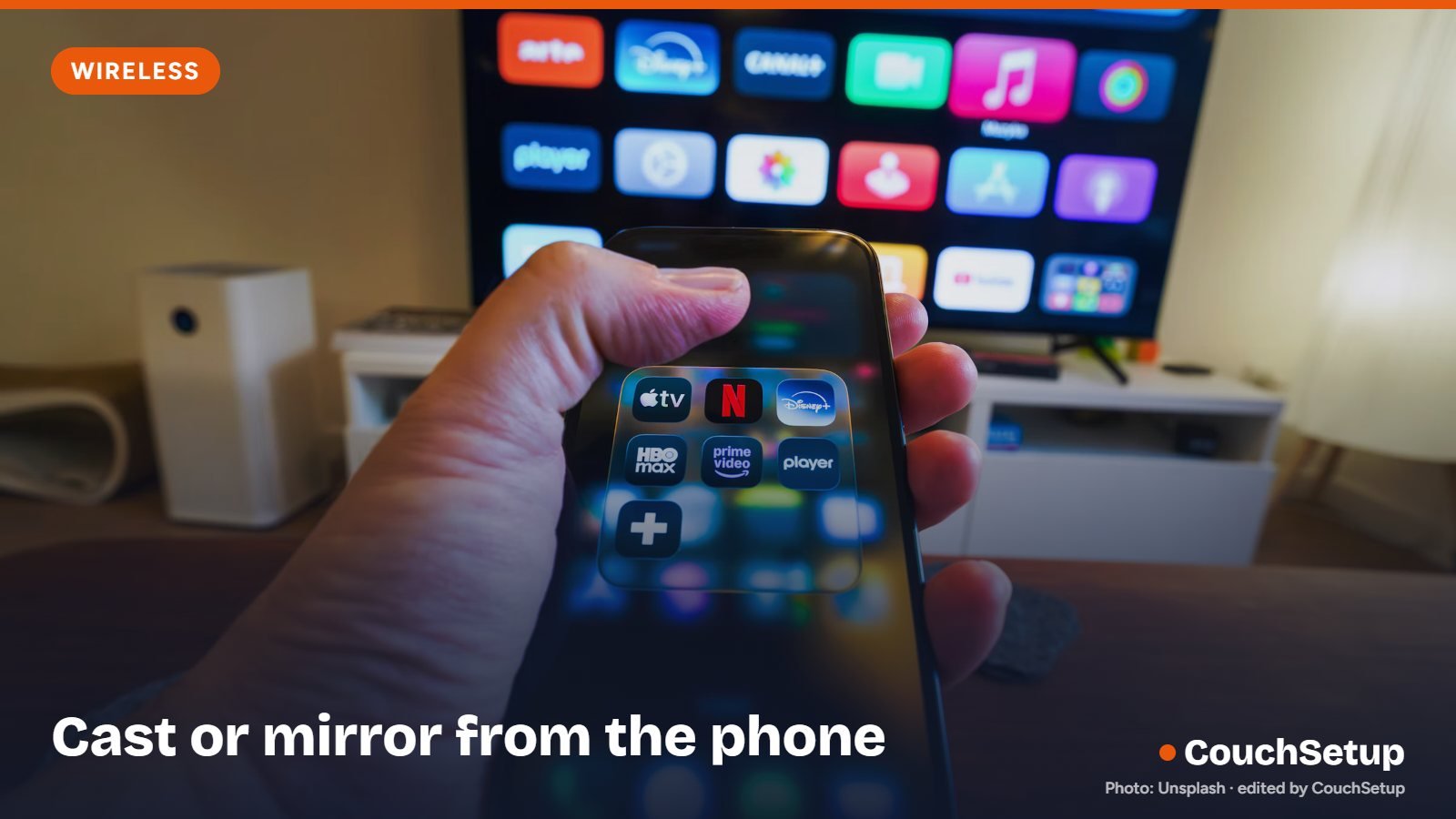
- Swipe down from the top-right corner to open Control Center.
- Tap Screen Mirroring and pick your TV. Enter the code if one appears.
To send one video instead, tap the AirPlay icon inside the app. No AirPlay on your TV? An Apple TV or many Roku models add it; see best streaming devices.
Android: Cast, Smart View or Screen Cast
Google TV, Android TV, Chromecast and many Vizio, Sony and TCL TVs support Google Cast. Tap the Cast icon in a video app, or pull down Quick Settings and tap Cast to mirror. Samsung phones use Smart View, which mirrors to Samsung TVs and most Miracast TVs, including many LG, Roku and Fire TV models. Other phones may call it Screen Cast, Wireless Projection or Wireless Display. On Fire TV, turn on Display Mirroring first (Settings > Display & Sounds).
With an HDMI cable
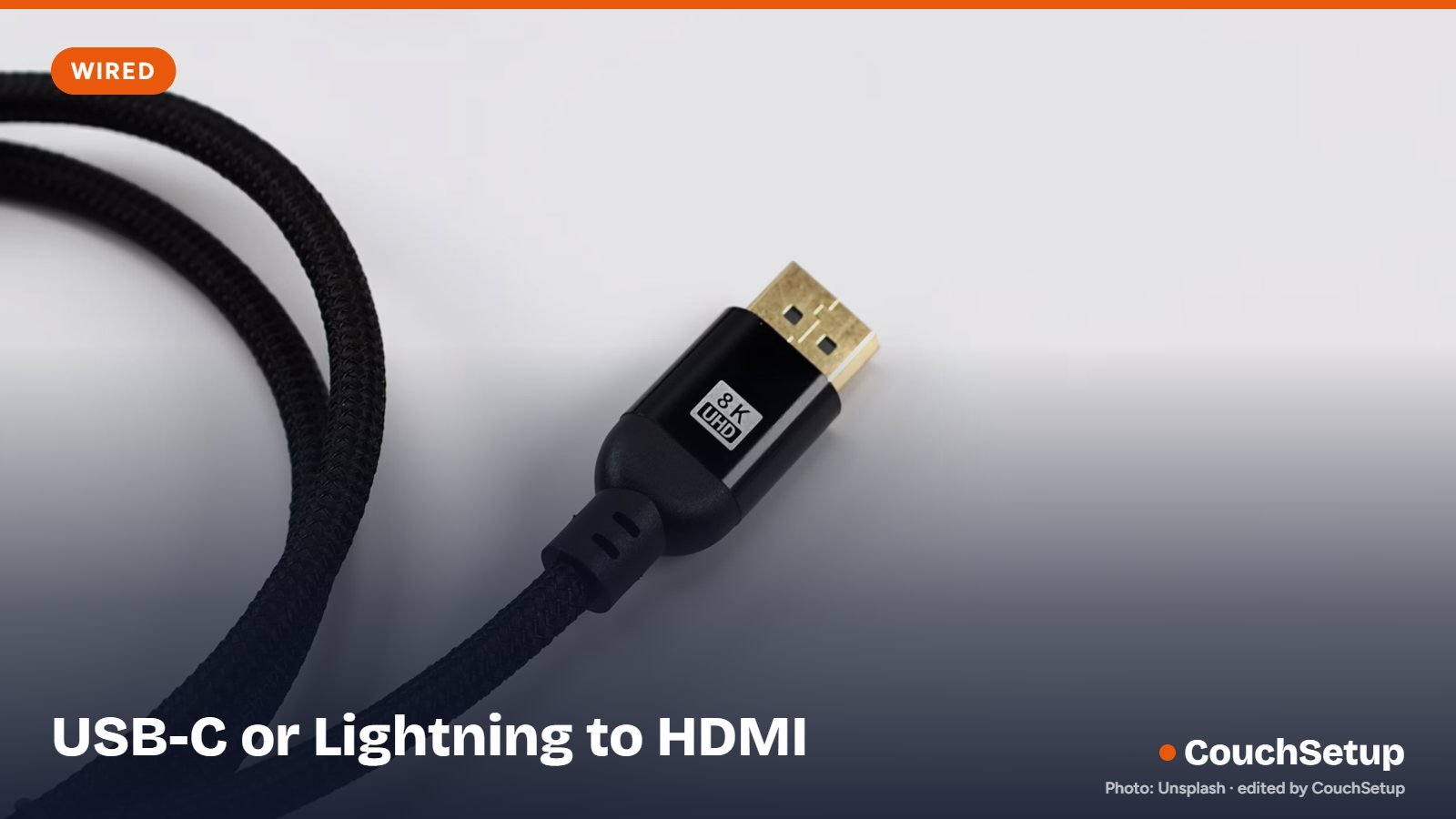
A cable gives zero lag and no buffering, great for games, presentations and hotel TVs. Plug HDMI into the TV, switch to that input, and connect the adapter to your phone. If one app shows a black screen, it’s that app blocking video over cable for copyright reasons, not your setup. Plugging a phone into the TV’s USB port won’t mirror anything; at best the TV opens files stored on it.
Without Wi-Fi
- Use a cable: USB-C or Lightning to HDMI needs no network.
- Use direct mirroring: Miracast (Smart View, Screen Cast) connects over Wi-Fi Direct without a router.
- Use your hotspot to connect a streaming stick, then cast. Watch the data use above.
- Bluetooth can’t send video, only sound; useful for wireless headphones.
If it won’t connect
- Put both on the same Wi-Fi network and the same band if your router splits 2.4 and 5 GHz.
- Restart the phone and the TV.
- Turn off VPN and battery saver on the phone; both can block casting.
- Update the TV and the app.
- No sound while mirroring? Check the phone isn’t connected to Bluetooth headphones.
How we picked
We gathered Apple’s and Google’s official instructions, the phone makers’ specs and Netflix’s data figures, put them side by side, and worked out what most guides leave out, like which phones support wired output and how much data a hotspot movie uses. Every source is listed at the end.
FAQ
How do I connect my phone to my TV wirelessly?
Use the Cast icon in a video app, or Screen Mirroring on iPhone and Smart View or Screen Cast on Android, with both on the same Wi-Fi.
Can I connect my phone to a TV that isn’t smart?
Yes, with an HDMI adapter or a cheap streaming stick. See streaming devices for old TVs.
Can I use Bluetooth?
Not for video; Bluetooth only carries audio.
Does mirroring use mobile data?
Only if the phone itself is streaming over mobile data. Casting uses the TV’s connection.
Does my Android phone support HDMI?
Only if its USB-C port supports DisplayPort Alt Mode; check the spec sheet.
Related guides
- How to connect a laptop to a TV
- Best streaming devices
- Fire TV Stick vs Roku
- How to connect AirPods to a TV
Sources: Apple Support: Use AirPlay to mirror your iPhone · Google: Cast your Android screen from Google Home · Trusted Reviews: iPhone 15 supports 4K HDR video output · Android Authority: Pixel 8 display output · Netflix Help: How to control how much data Netflix uses