
If a movie on your new TV looks weirdly smooth, like a behind-the-scenes video, that’s motion smoothing. Nearly every TV ships with it on, and most movie fans turn it off the first night. Here’s how to turn off motion smoothing on your TV, brand by brand, and what to keep if you watch a lot of sports.
Our verdict
Quick answer: open Picture settings and find the setting with “motion” or “clarity” in the name (Picture Clarity or Auto Motion Plus on Samsung, TruMotion on LG, Motionflow on Sony, Action Smoothing on TCL and Roku TVs). Set it to Off. Faster still: switch to Filmmaker Mode or Movie mode, which usually turns it off for you.

What motion smoothing does
Movies are shot at 24 frames per second, but your TV refreshes 60 or 120 times a second. Motion smoothing (motion interpolation) invents extra frames in between the real ones to make movement fluid. On sports it can look great. On movies it strips away the film look and gives the soap opera effect, sometimes with little glitches around moving objects where the TV guessed wrong. Turning it off doesn’t harm the TV or lower the resolution.
What the reviews don’t tell you
How much of what you see is invented
| Panel | Real film frames per second | Frames shown | Invented with smoothing on |
|---|---|---|---|
| 60Hz | 24 | 60 | 36 of 60 (60%) |
| 120Hz | 24 | 120 | 96 of 120 (80%) |
On a 120Hz TV at full strength, four out of five frames on screen are guesses, which is why the effect is so obvious on newer, faster TVs.
Why some judder is normal on 60Hz TVs
Turn smoothing off on a 60Hz TV and 24fps film can’t divide evenly into 60, so frames alternate between 3 and 2 refreshes (about 50 ms and 33 ms). That uneven rhythm, 3:2 pulldown, shows as a slight stutter on slow pans. A 120Hz TV shows every film frame exactly 5 times, so pans look even with smoothing off. If pans bother you on a 60Hz set, a low de-judder setting is a fair compromise, and turning on frame rate matching in your streaming stick helps on any TV.
Brand by brand
Menu names shift between model years. If the path doesn’t match, look in Picture (often under Advanced or Expert) for anything with “motion”, “clarity”, “smooth” or “judder” in the name.
| TV brand | Setting name | Where to find it |
|---|---|---|
| Samsung | Picture Clarity (Auto Motion Plus on older sets) | Settings > Picture > Expert Settings |
| LG | TruMotion | Settings > Picture > Advanced Settings > Clarity |
| Sony | Motionflow | Settings > Picture > Motion |
| TCL (Google TV) | Action Smoothing / Motion Clarity | Settings > Picture > Motion |
| Roku TVs | Action smoothing | Press * while watching > Advanced picture settings |
| Hisense | Ultra Smooth Motion / MEMC | Settings > Picture > Picture Mode Settings |
| Vizio | Reduce Judder / Reduce Motion Blur | Menu > Picture > Advanced Picture |
| Fire TV models | Motion Smoothing / Motion Processing | Settings > Display & Sounds > Picture |
| Panasonic | Intelligent Frame Creation | Menu > Picture > Option Settings |
- Samsung: set Picture Clarity to Off. For sports, choose Custom and keep Judder Reduction low with Blur Reduction higher. What Hi-Fi notes the default Auto setting looks over-processed.
- LG: set TruMotion to Off. What Hi-Fi says the preselected setting is usually too strong; User mode lets you set de-judder and de-blur separately.
- Sony: What Hi-Fi generally recommends Motionflow on Standard on Sony sets, as their processing is among the better ones. If you see the soap opera effect, turn it off. Cinemotion is a separate setting for 24p film.
- Hisense: What Hi-Fi often prefers a medium setting to fully off, which can judder. Try both.
- TCL and Roku TVs: press * while watching, open Advanced picture settings and turn Action smoothing off.
- Vizio: set Reduce Judder to 0.
The shortcut: Filmmaker Mode
Most new Samsung, LG, Panasonic, Vizio, TCL and Hisense TVs have Filmmaker Mode. It turns off motion smoothing and extra sharpening and sets color close to the creator’s intent. It can look dim or warm at first if you’re used to Vivid; give it a couple of evenings. For the rest, see our best TV picture settings.

When to leave some on
| What you watch | Setting |
|---|---|
| Movies and dramas | Off |
| Live sports | Low, if fast pans look blurry |
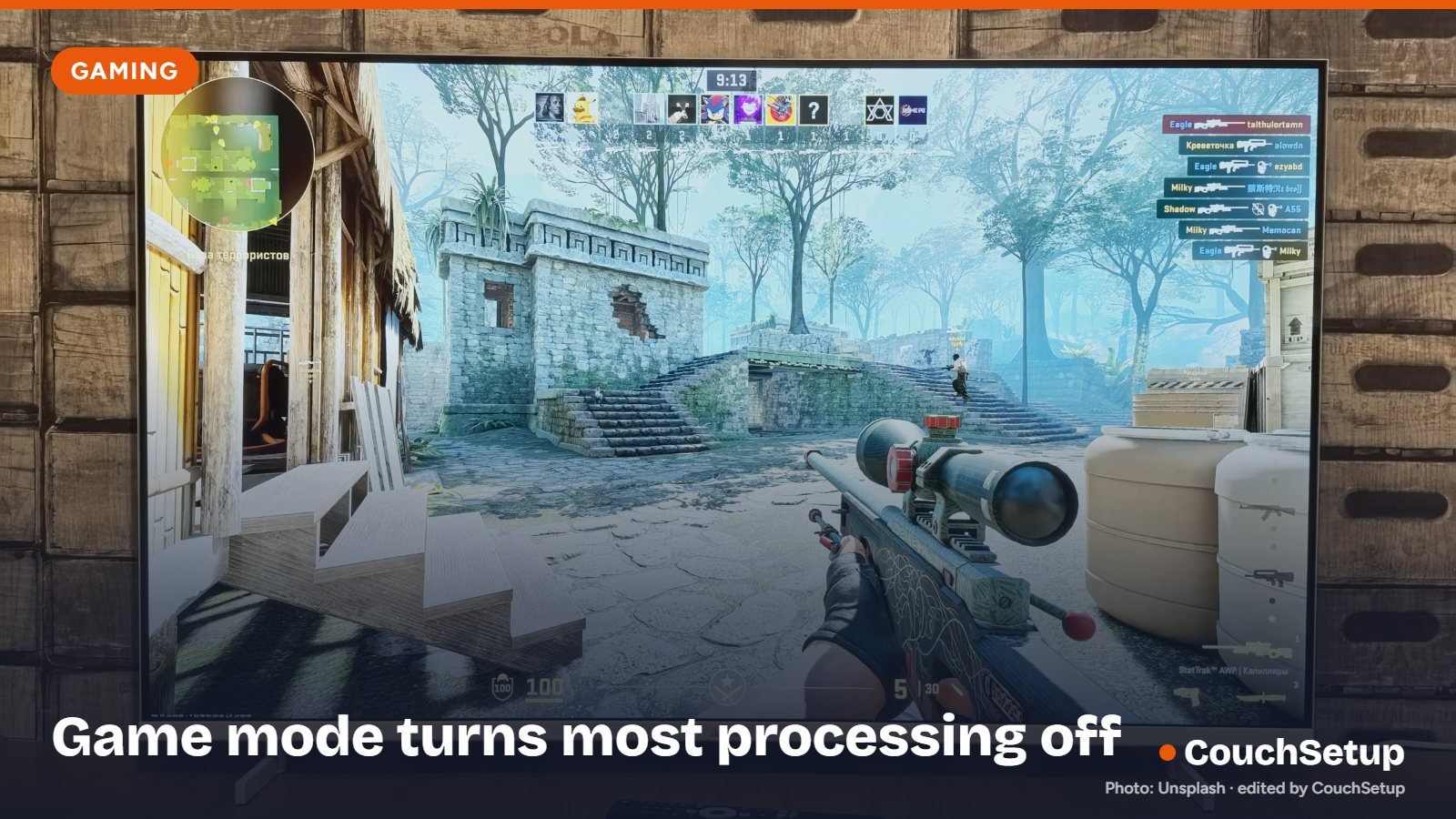
| Video games | Game Mode (turns most processing off) |
| Animation | Off; it can make line art wobble |
Many TVs save settings per picture mode or per input, so you may need to turn it off once for your streaming stick and again for the cable box. For gaming setup, see best TVs for PS5 and Xbox.
Still looks smooth?
- Check every input; the setting is often saved separately for each HDMI port and the built-in apps.
- Turn on frame rate matching on your Apple TV, Roku or Fire TV stick so 24fps films reach the TV at 24fps.
- It may be the show: reality TV, soaps and sports are often shot at 60fps and always look smooth.
- Check again after a firmware update, which can reset picture settings.
How we picked
We gathered the TV makers’ menu names and expert guidance from What Hi-Fi and Digital Trends, put them side by side, and worked out what the guides leave out, like how many frames are invented and why 60Hz TVs judder. Every source is listed at the end.
FAQ
What is the soap opera effect?
The overly smooth, video-like look movies get when motion smoothing adds invented frames.
Does turning it off make the picture worse?
No. Resolution, brightness and color stay the same; films look as they were shot.
How do I turn it off on a Samsung TV?
Settings > Picture > Expert Settings, then set Picture Clarity (or Auto Motion Plus) to Off.
How do I turn it off on an LG TV?
Settings > Picture > Advanced Settings > Clarity, then set TruMotion to Off.
Does Game Mode turn it off?
On most TVs, yes, to cut input lag.
Related guides
Sources: What Hi-Fi: How to turn off motion smoothing on your TV · Digital Trends: The soap opera effect explained